
Close Menu
Computing.net
    Facebook X (Twitter) Instagram
    Computing.netComputing.net
    • News
      1. AI
      2. Crypto
      3. Gaming
      4. Hardware
      5. Security
      6. Software
      7. View All

      Anthropic’s COBOL Automation Tool Triggers IBM Stock Plunge and Crypto Market Decline

      February 24, 2026

      AI Trading Bot Loses $441K in Crypto After Decimal Point Mistake

      February 23, 2026

      Tesla (TSLA) Stock: Goodbye Sedans, Hello Robots in Dramatic Production Shift

      January 29, 2026

      Palantir Technologies (PLTR) Stock: Why Bears May Be Wrong About Valuation Concerns

      January 29, 2026

      SUI Token Rallies 40% Following Major Staking Event and CME Futures Announcement

      May 12, 2026

      Chainlink (LINK) Surges to $10.40 as Network Activity Hits Eight-Month Peak

      May 12, 2026

      Dogecoin Whales Ramp Up Accumulation as DOGE Eyes Critical Breakout Levels

      May 12, 2026

      Bitcoin Holds $81K While Burry Flags Nasdaq Bubble and Oil Surges Past $105

      May 12, 2026

      Hamster Kombat: Unraveling TON’s Gaming Phenomenon

      August 7, 2024

      W-Coin: Exploring the Latest Telegram Tap-to-Earn Phenomenon

      August 7, 2024

      Hamster Kombat: 300 Million Players & Counting, HMSTR Token Airdrop Soon!

      July 31, 2024

      Hamster Kombat Developers Work with TON Team on Airdrop Solution

      July 30, 2024

      Nothing Expands Product Line with New AI Feature & Phone Update

      July 31, 2024

      Security Audit Reveals Concerns in Atari’s Blockchain Game on Base

      August 6, 2024

      SideWinder Group Targets Maritime Facilities in New Cyber Espionage Campaign

      July 30, 2024

      OAuth Implementation Flaw Exposes Millions of Websites to XSS Attacks

      July 30, 2024

      Hamster Kombat Players Face Growing Cybersecurity Threats

      July 25, 2024

      Anthropic’s COBOL Automation Tool Triggers IBM Stock Plunge and Crypto Market Decline

      February 24, 2026

      Cookie Crumble: Google Halts Plans to Eliminate Third-Party Cookies in Chrome

      July 23, 2024

      Big Brother is Watching: Apple’s Creepy New Ad Urges iPhone Users to Ditch Chrome

      July 23, 2024

      Nvidia Stock Soars to New Record at $219.44 Ahead of May 20 Earnings

      May 12, 2026

      Rocket Lab Shares Surge Past $120 Following Wave of Analyst Upgrades

      May 12, 2026

      GM Shares Decline Following 600 IT Layoffs Amid Strategic AI Workforce Transformation

      May 12, 2026

      SES Delivers €847M Q1 Performance as Intelsat Integration and Aviation Deals Fuel Expansion

      May 12, 2026
    • How To

      Batch Files: Tokens and Delimiters (FOR Loops)

      July 31, 2024

      Types of Ethernet Cabling & Electrical Low Voltage Wiring

      July 9, 2024

      What You Should Know About .JSON File Extension

      January 10, 2023

      Bkup File Extension

      November 19, 2022

      HEIC File Extension

      November 19, 2022
    • Office
      1. Excel
      2. Google Sheets
      3. View All

      How to Convert Column List to Comma Separated List in Excel

      July 24, 2024

      How to Find the Last Monday of the Month in Excel

      July 24, 2024

      Convert Bytes to MB or GB in Excel: 3 Methods!

      July 24, 2024

      How to Remove Characters from Right in Excel

      July 30, 2023

      How to Subtract in Google Sheets: Complete Guide

      July 31, 2024

      Bullet Points in Google Sheets

      January 20, 2022

      Sort by Date in Google Sheets

      January 18, 2022

      Google Sheets Timestamp

      January 17, 2022

      How to Subtract in Google Sheets: Complete Guide

      July 31, 2024

      How to Convert Column List to Comma Separated List in Excel

      July 24, 2024

      How to Find the Last Monday of the Month in Excel

      July 24, 2024

      Convert Bytes to MB or GB in Excel: 3 Methods!

      July 24, 2024
    • Answers
    • About
    • Contact
    Facebook X (Twitter)
    Computing.net
    Excel

    Remove Dotted Lines in Excel – Easy How To Guide!

    Denise ElizabethBy Denise ElizabethJanuary 25, 2022
    Twitter LinkedIn Email Telegram
    How to Remove Dotted Lines in Excel
    Twitter LinkedIn Email Telegram

    Dotted lines are known to appear in Excel from time to time due to a number of causes.

    For example, they can appear when dotted borders are placed around the cells or when the spreadsheet is indicating that there is a page break.

    Lines can also be the result of having parts of the spreadsheet being set as ‘Print Areas’ or the sheet being put into print view.

    Dotted lines can appear when border settings have been changed to show as dotted or they could simply even be gridlines that only appear to be dotted lines.

    Whatever the cause, dotted lines can be distracting, making it necessary to find a way to fix or remove them. 
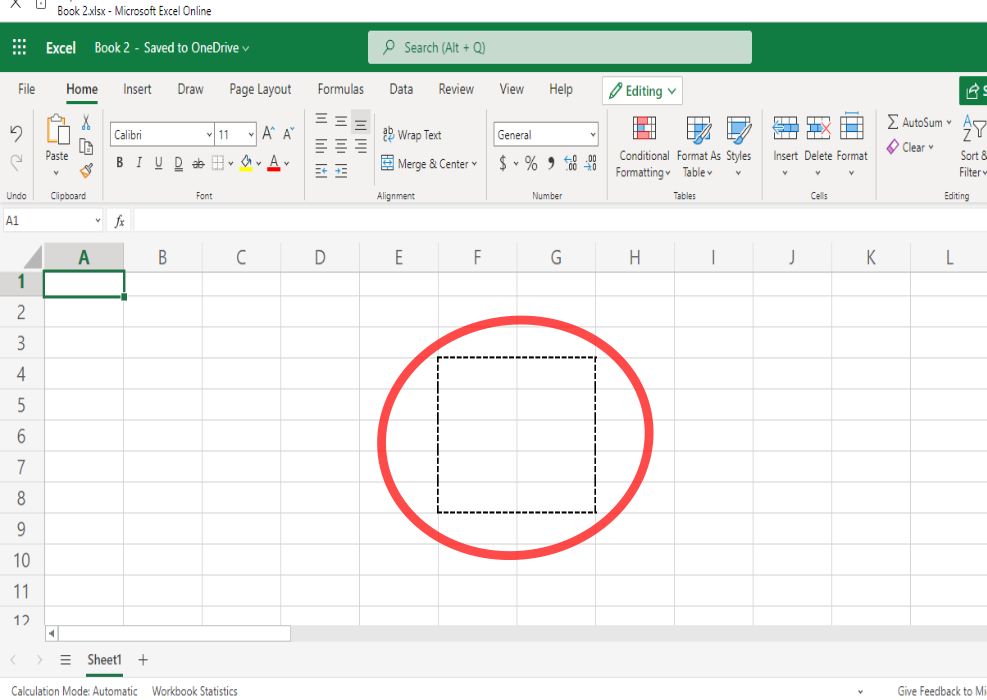
    removing dotted lines in excel

    Contents:

    Toggle
    • How to Remove Dotted Lines from Excel
    • Change the Print Area Option
    • Visual Basic Method
    • Uncheck Show Page Breaks Technique
    • Changing the Border Around Cells
    • Use the Open and Close Technique
    • Removing Dotted Lines from Excel Can be Easy

    How to Remove Dotted Lines from Excel

    There are many ways that you can go about removing dotted lines in Excel.

    Start by figuring out which issue is causing the dotted lines to appear.

    Then, continue by working through the steps necessary to resolve the problem.

    This tutorial provides effective solutions that can be used to remove unwanted dotted lines in Excel.

    Change the Print Area Option

    The print area of a spreadsheet is a specific cell or set of cells that can be printed if you don’t wish to print out the whole sheet.

    When the appearance of lines happens as a result of the Print settings, this can sometimes cause gray lines which are not dotted – although they may appear to be.

    Changing the Print Area option can be the perfect solution to resolve the appearance of lines in your worksheet.

    1. Click and select the cell range which have dotted lines.
    2. In the ribbon menu, select ‘Page Layout’.
    3. In the ‘Page Setup’ area, select ‘Print Area’. Upon clicking ‘Print Area’ a menu should appear.
    4. Click on ‘Clear Print Area’ in this menu.

    print area in excel

    After clearing the print area, the lines should then be removed from where they were before.

    Visual Basic Method

    The Visual Basic Method involves using some code, in addition to an editor.

    VBA Editor is a useful tool that allows you to use and run VBA code in Excel.

    This method will employ the VBA Editor to stop Excel from displaying page breaks.

    While this method may seem a bit more involved than other methods, it can be effective in removing dotted lines from Excel.

    1. Copy this piece of code: ActiveSheet.DisplayPageBreaks = False
    2. Hold down Alt + F11 until the VBA Editor opens.
    3. Paste the code from step 1 into the Immediate window by right-clicking and selecting ‘Paste’ or holding down CTRL+ V.
    4. Press Enter on the keyboard.
    5. Go back to the original Excel worksheet that you started from.

    vba excel

    When you’ve completed the last step of the Visual Basic method, the dotted lines should disappear.

    Uncheck Show Page Breaks Technique

    Changing the settings of the page breaks in Excel can be a great way to get rid of unwanted lines.

    To make things even better, unselecting the option to show page breaks in Excel isn’t complicated nor does it take up much time.

    1. In the ribbon menu at the top of the page, click on ‘File’.
    2. Next, select ‘Options’.
    3. When the dialog box that shows ‘Excel Options’ comes up, select ‘Advanced’.
    4. Under ‘Display options for this worksheet’, remove the check from “Show page breaks”.

    Alternate page breaks technique: You can also go to ‘Page Layout’ in the ribbon menu, click on “Breaks”, then click on ‘Remove Page Break’ to select it.

    page breaks excel

    Unchecking the “Show page breaks” option should then remove the dotted lines from your worksheet.

    Changing the Border Around Cells

    Sometimes dotted lines appear due to the border settings being set to have a dotted style.

    If the problem of dotted lines stems from the borders of the cells being set to dotted, then this method would be appropriate.

    Changing the setting for cell border style can help to resolve this problem and this can be a super simple means of removing dotted lines quickly and effectively.

    1. Click and select the range of cells that you want the dotted borders gone from.
    2. Select and click on ‘Home’ in the ribbon menu.
    3. Click the ‘Border’ arrow to open up the border drop-down menu.
    4. Select ‘No Border’ in the drop-down menu. There will be more options available for border styles in this menu if you wish to change the border.

    change borders in excel

    Once you have made changes to the border settings and have removed the border from the cells, you should see that the dotted lines have disappeared. 

    Use the Open and Close Technique

    The open and close technique may not be the best approach to fixing this problem, yet it can be a super simple and quick way to get rid of dotted lines in Excel.

    This technique employs the convenient method of closing and opening the document to make dotted lines go away – making it one of the easiest methods around.

    To do this method:

    1. Make sure to save any work before closing.
    2. Click the Close Window option in the top right of the spreadsheet window. You could also click ‘File’ in the ribbon menu, then click ‘Close’.
    3. Next, reopen the workbook by opening Excel, clicking on ‘File’, then pressing ‘Open’ or holding down on CTRL + O.
    4. Choose the location or name of the file you’re reopening, then select it by clicking on it.
    5. Click ‘Open’ to reopen the workbook.

    After closing the workbook then opening it back up again, the dotted lines should be gone from the sheet.

    Removing Dotted Lines from Excel Can be Easy

    Finding an answer to removing dotted lines in Excel can be a matter of completing a few, short and easy steps.

    If one approach doesn’t solve the problem, move onto a different one until the dotted lines are gone.

    As a result, these simple tips can provide you with the solution that you have been looking for.

    Share. Twitter LinkedIn Email Telegram
    Avatar photo
    Denise Elizabeth
    • Website
    • X (Twitter)
    • LinkedIn

    Denise is a Financial Controller with experience in Office Software (Excel & Word), Accounting, Bookkeeping, Business Incorporation/LLC, Taxes and IRS Issues and more. She Graduated from Portland State University in Business Management and went onto Seattle University to complete her Graduate (Masters) Degree in Organizational Systems Renewal. She contributes to Computing.net with her knowledge of Business Software, in particularly Microsoft Excel and Google Sheets.

    Related Posts

    How to Subtract in Google Sheets: Complete Guide

    July 31, 2024

    How to Convert Column List to Comma Separated List in Excel

    July 24, 2024

    How to Find the Last Monday of the Month in Excel

    July 24, 2024

    Convert Bytes to MB or GB in Excel: 3 Methods!

    July 24, 2024

    How to Remove Characters from Right in Excel

    July 30, 2023

    How to Create a Stem and Leaf Plot in Excel

    January 10, 2023
    Add A Comment

    Comments are closed.

    Latest

    Nvidia Stock Soars to New Record at $219.44 Ahead of May 20 Earnings

    May 12, 2026

    Rocket Lab Shares Surge Past $120 Following Wave of Analyst Upgrades

    May 12, 2026

    GM Shares Decline Following 600 IT Layoffs Amid Strategic AI Workforce Transformation

    May 12, 2026

    SES Delivers €847M Q1 Performance as Intelsat Integration and Aviation Deals Fuel Expansion

    May 12, 2026

    Trump Dismisses Iran Peace Proposal — Oil Markets React as Hormuz Remains Restricted

    May 12, 2026
    • Facebook
    • Twitter

    Latest Reviews

    Meta Platforms Shares Tumble 8% Despite Strong Q1 Performance Amid AI Investment Surge

    April 30, 2026

    Flush.com Review: Casino & Sportsbook With 275% Welcome Bonus

    March 7, 2026

    Katsubet Review: Crypto Casino With 300% Welcome Bonus & Free Spins

    March 7, 2026

    7Bit Review: Crypto Casino With 325% Bonus & 250 FS

    March 7, 2026

    Mega Dice Review: Crypto Casino With 200% Bonus & 50 Free Spins, Legit?

    March 7, 2026


    Home / Privacy Policy / Terms & Conditions

    Computing.net © 1996 - 2026 Kooc Media Ltd. All rights reserved. Registered Company No.05695741

    Type above and press Enter to search. Press Esc to cancel.